Glossary Email authentication
DKIM for newsletters: Check the signature and DNS key
DKIM (DomainKeys Identified Mail) signs parts of an email with a private key and lets recipients verify the signature using a public key in DNS.

On this page
On this page
The autumn programme newsletter comes from [email protected]. Its header signature contains d=example.org and s=news2026. Together these values identify the DNS name where the recipient finds the public key.
From the signature to the DNS lookup
The sending server hashes the message body and signs message data including selected header fields. The DKIM-Signature header carries, among other fields, the signing domain d=, the selector s= and the signature. The selector identifies a key within the domain. Different services or a key rotation can use different selectors.
If the autumn newsletter goes through an external service, it can sign with its own domain, the club’s domain or both. The visible sender in this example is still [email protected]. Each lookup uses the domain from the signature being checked. That matters when you check whether the signature aligns with your own sender.
Find the public key
- Signing domaind=example.orgThe domain identifies the signer.
- Selectors=news2026The selector identifies the key.
- DNS namenews2026._domainkey.example.orgThe receiver looks up the key there.
The public key is published as a TXT record at the resulting DNS name. Some providers ask you to add a CNAME pointing to the record they manage. Use the exact record type and name specified by your provider. DKIM is a signature. Recipients can still read the message contents.
Read the result and diagnose failures
A DKIM-Signature line first tells you that a signature was included. Open the original headers after delivery and check the receiver’s Authentication-Results for dkim=pass and the domain. When there are several signatures, check the one for your intended domain. DMARC needs at least one successful authentication path aligned with the visible From domain.
For a failed check, begin with a test email delivered directly. If DNS resolves and contains the expected key, check that the service actually signs with that selector. Then compare the direct send with the forwarded version.
Distinguish the signature from the result
- In the sent headerDKIM-SignatureShows the signature that was sent and its fields.
- In the received headerdkim=passShows that the receiver successfully verified this signature.
If the key is missing, compare d= and s= with the published DNS name. After switching providers or rotating keys, check that test messages use the new selector. Keep the old public key available while messages signed with it may still be in transit. If only the forwarded test fails, compare it with a message delivered directly. A footer added in transit can change the signed content.
Read the message headers at the recipient
DKIM and domain alignment in DMARC
Check DKIM in mailfino Cloud
Under Sending, choose your sender address and open its DNS view. The DKIM row shows the record name and the information your DNS administrator needs. The status in this view helps you check the published record. A test sent through the intended sender shows which signature actually arrives.
During a changeover, check the DNS record and the selector actually used in the same test series. For the autumn programme, record a short checklist with the expected signing domain, expected selector and the result from a received test newsletter. Record any unusual results separately by mailbox provider and sending route.
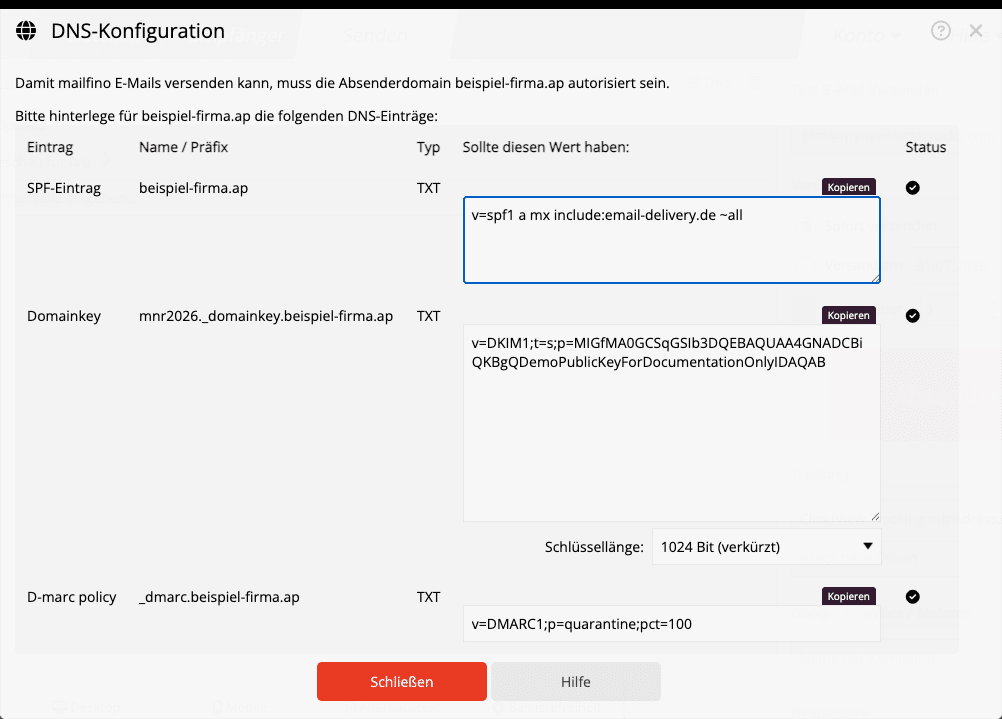
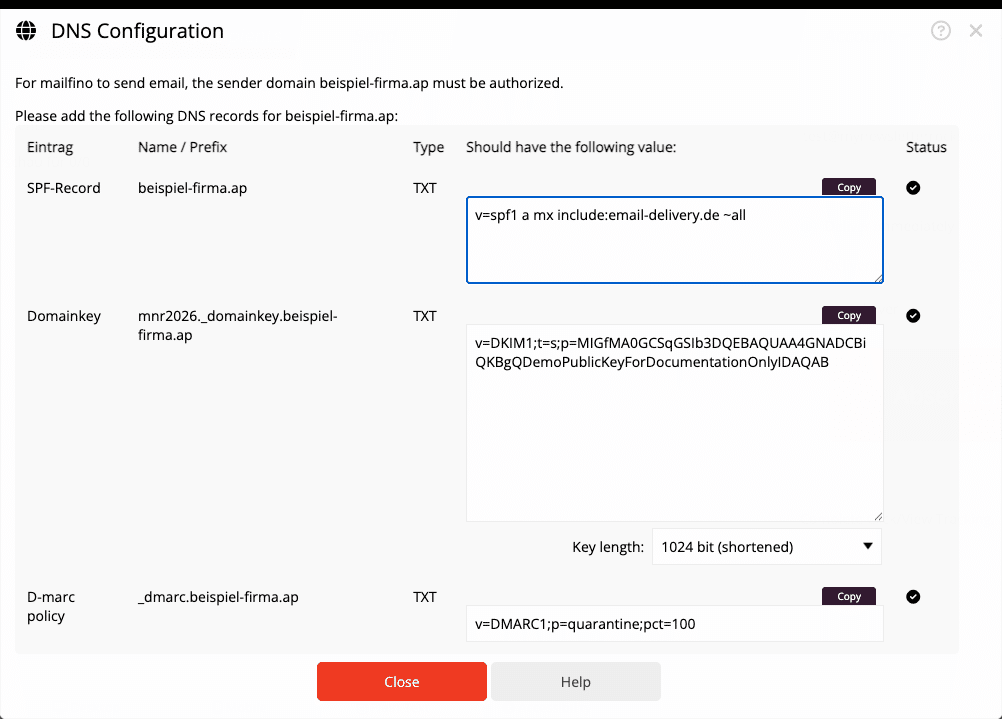
When changing providers, test every active source separately. Your newsletter, shop and company mailboxes can use the same visible domain while using different selectors. Record the expected selector and the result observed for each source.
