Email marketing for Shopware 6
Reach Shopware customers with targeted newsletters
Create targeted newsletters using Shopware customers and completed orders. Select audiences by product or category and add products from imported purchase data — in the cloud, self-hosted or with Enterprise.
- Choose which customers to import
- Use purchase data to build audiences
- Add products to newsletters
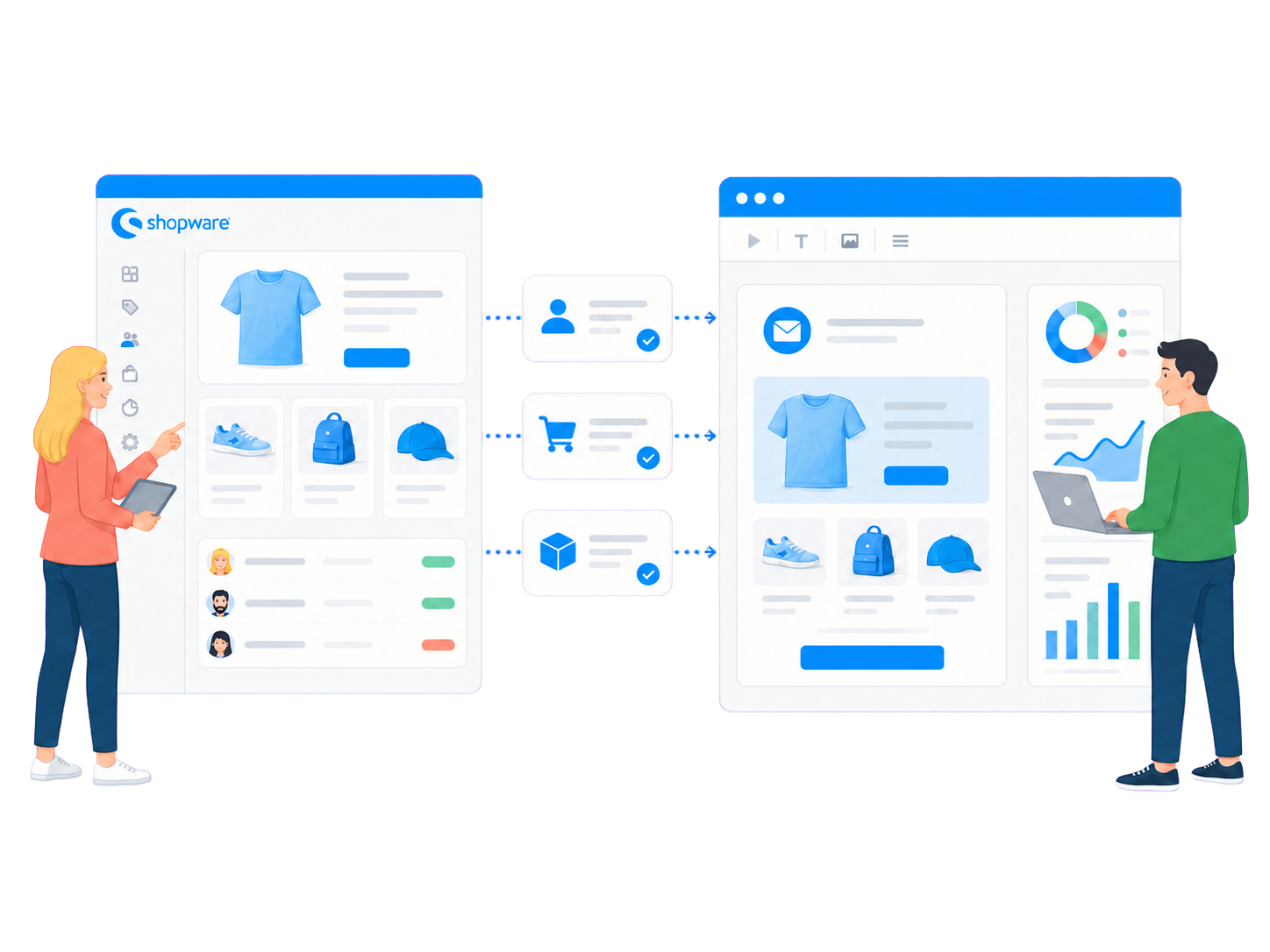
Newsletter work outside the shop
Turn shop data into targeted newsletters
Shopware 6 manages newsletter signups and double opt-in status, but according to Shopware it has no built-in newsletter sending feature. mailfino adds a dedicated workspace for audiences, design, sending and reporting.
Newsletter permission: Manage signups and permission to send in mailfino. The integration does not import Shopware's newsletter recipient list or consent status.
CUSTOMERS
Import contacts
Import Shopware customers into a selected mailfino list and recognize them by email address on a repeat import.
PURCHASES
Understand interests
Import completed orders as purchase data and select existing contacts by purchases, products or categories.
PRODUCTS
Create offers
Add product names, images, descriptions, prices and links from imported purchase data, then combine them with your newsletter content.
Which newsletter solution suits the way you use Shopware?
Native Shopware
For signup and double opt-in: Shopware manages newsletter recipients, but does not create or send campaigns itself.
Event-based marketing clouds
For real-time behavior and automation: These solutions focus on continuous data synchronization, abandoned carts and automated flows.
mailfino
For planned newsletter campaigns: Import shop data, design your content in mailfino and choose cloud or self-hosted deployment.
mailfino focuses on planned campaigns, repeatable imports and a choice of deployment models. It is not intended for abandoned-cart or real-time automation.
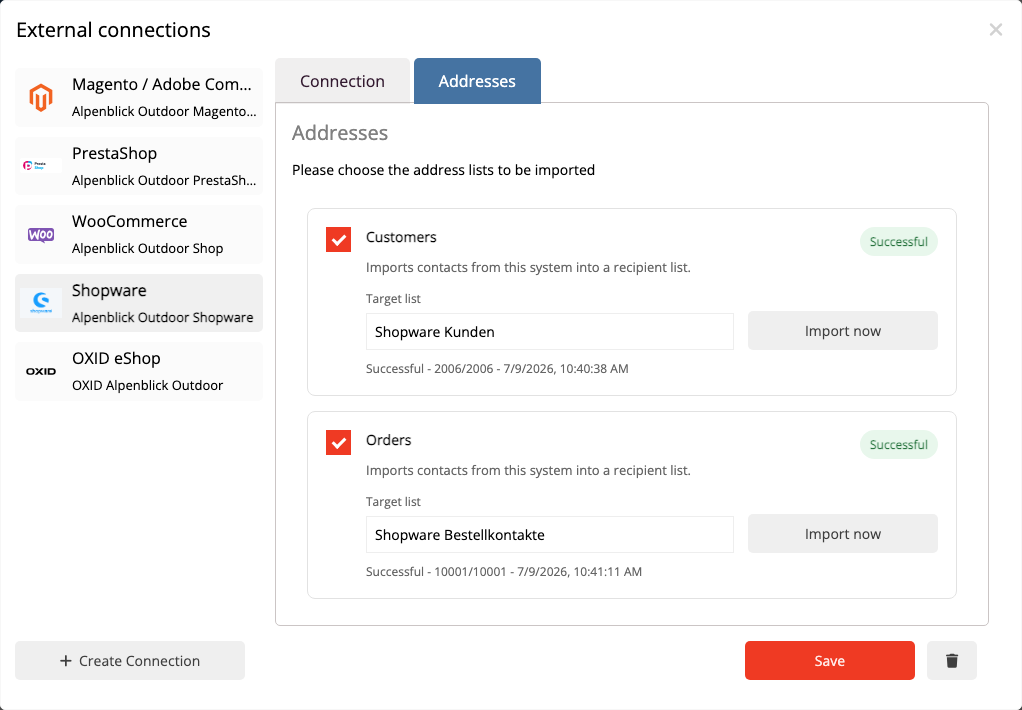
Import the data you need, when you need it
Import Shopware customers into suitable recipient lists
Choose a destination list and start the import. Repeat imports recognize and update existing recipients by email address.
- Configure customer imports and order imports separately.
- Run import profiles again when needed.
- No data is written back to Shopware.
The order import does not create a recipient list from all buyers. It stores completed orders as purchase data for existing mailfino contacts.
Relevance from real purchases
Reach buyers by product and category
After importing orders, create dynamic audiences from Shopware purchase data. The calculated recipient count includes only contacts who exist in mailfino and match the selected purchase condition.
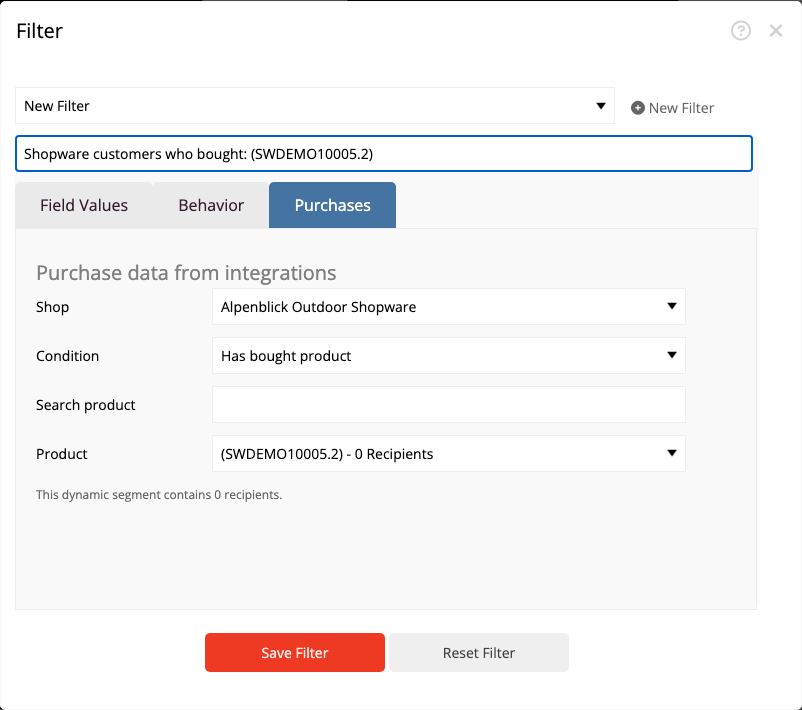
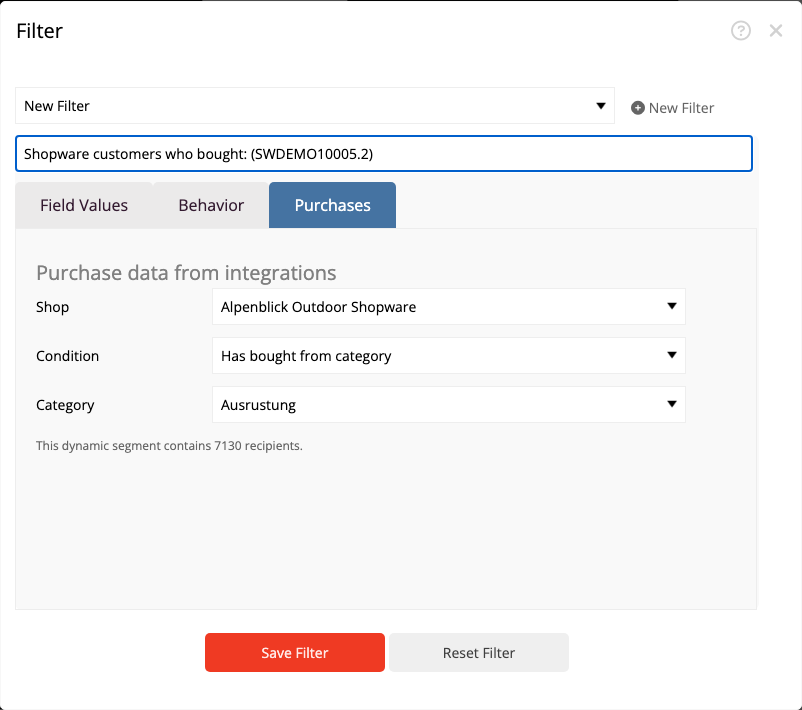
Important: Purchase data determines content relevance, not permission to send. Making a purchase does not automatically mean someone may receive a newsletter.
Products as ready-made newsletter building blocks
Add shop products to newsletters faster
The order import provides the available product data. Select a Shopware connection in the editor and search for the product you want. mailfino adds the product name, image, description, price and link to a customizable product card. Products without a purchase reference are not generally available in the current version.
- Combine product cards with editorial content.
- Check the layout for desktop and mobile devices.
- Check the content with a test email before sending.
Saved product cards do not update automatically when the shop changes later. Select the product again to import a new price, text or image.
01
Insert a product card
02
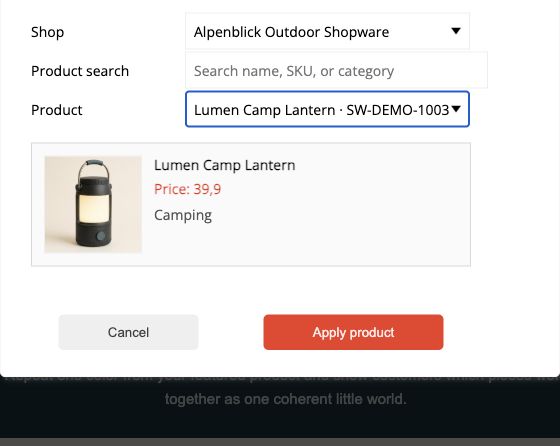
Find a Shopware product
Select the Shopware connection and search for the product you want. The selection dialog shows the image, description and price.
03
Add the product card
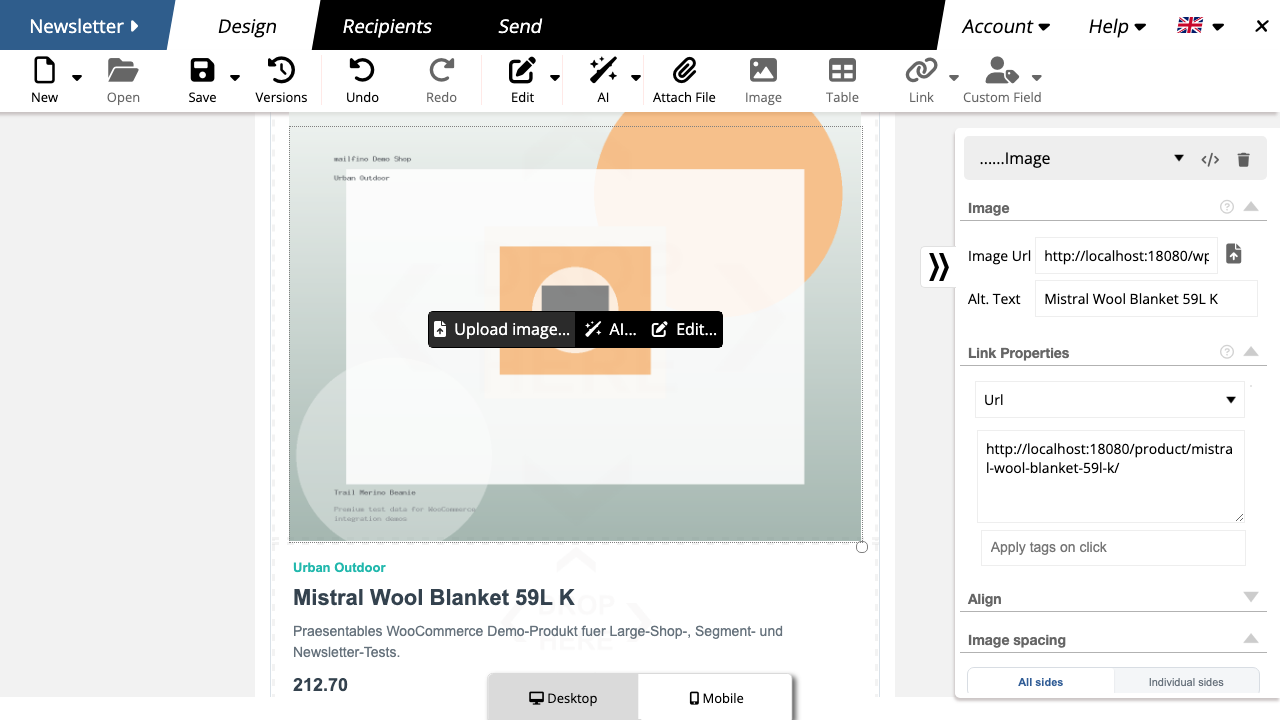
Example product card in the mailfino editor.
Keep purchase interest and consent clearly separate
Send only to contacts with permission
The current Shopware integration evaluates neither a Shopware consent field nor a Shopware newsletter recipient list. Permission to send, managed in mailfino, remains the deciding factor.
Shop data for relevance
Customer and purchase data helps select suitable content and build audiences.
mailfino for permission
Your own forms, double opt-in, unsubscribes and suppression lists control who may actually be contacted.
Read-only API access
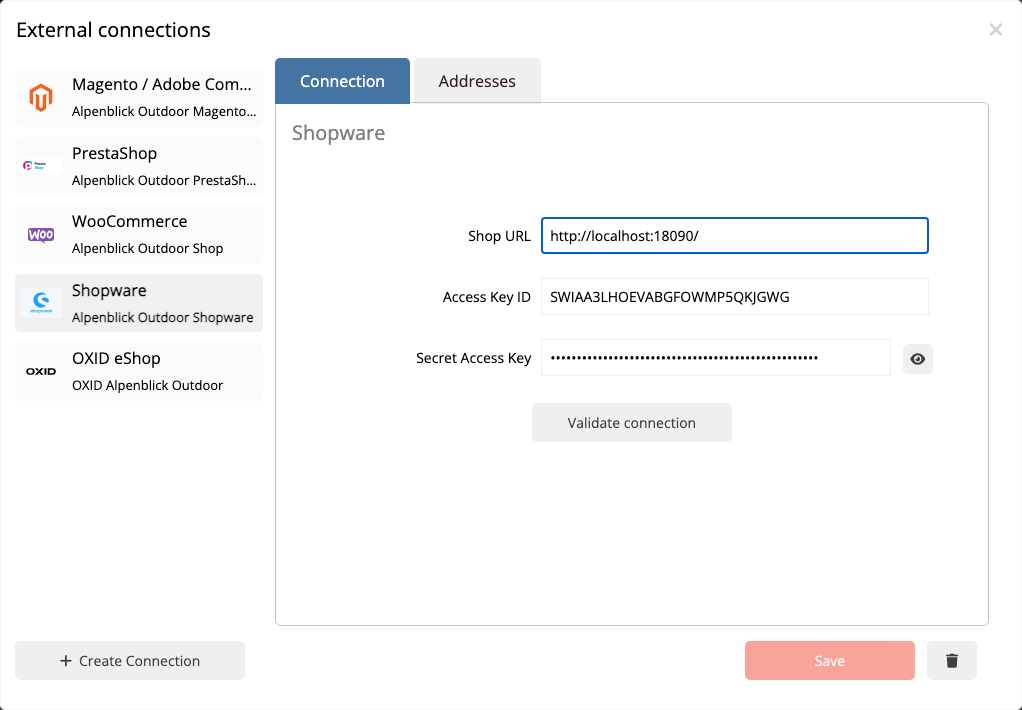
Connect Shopware without an additional shop extension
Create an integration for the Admin API in Shopware. In mailfino, enter the shop URL, Access Key ID and Secret Access Key. Read permissions for customers, orders, products, media and categories are sufficient for the documented import.
- Create an API integration in Shopware.
- Enter the credentials in mailfino.
- Check the connection and configure import profiles.
Deployment that suits your infrastructure
Choose where your email marketing runs
CLOUD
Get started directly
Use mailfino as a managed cloud solution without running another application yourself.
SELF-HOSTING
Control your own data
Run your shop and newsletter platform on infrastructure you choose. Selfhosting Lite does not include integrations.
ENTERPRISE
Find an individual fit
Address complex requirements for operations, integration, security and support through the Enterprise offering.
Ready for newsletters with Shopware?
FAQ
Frequently asked questions about the Shopware newsletter integration
Does Shopware 6 have its own newsletter sending feature?
Shopware 6 manages newsletter recipients, signup forms and double opt-in status. According to Shopware, however, it does not include a built-in feature for creating and sending newsletters. Extensions or external newsletter solutions are used for this.
Does the Shopware integration synchronize in real time?
No. Customers and completed orders are imported through saved import profiles. These imports can be run again. There is no continuous real-time synchronization and no data is written back to Shopware.
Which orders are imported as purchase data?
Import completed Shopware orders as purchase data. Orders are matched to existing mailfino contacts by email address; they do not automatically create a recipient list.
How are customer and purchase data updated?
Run the saved import profile again. Customers are recognized by their email address; purchase data is imported from completed orders when the order import is repeated. There is no continuous real-time synchronization.
Which Shopware customers are updated on a repeat import?
Existing recipients are recognized by their email address. Customers without an email address cannot be created or updated as newsletter contacts.
Can I segment by purchased products or categories?
Yes. After importing completed orders, existing mailfino contacts can be filtered by whether they made a purchase, bought a specific product or bought from a specific product category.
Does mailfino import Shopware newsletter consent?
No. The current integration evaluates neither a Shopware consent field nor a Shopware newsletter recipient list. Permission to send must be managed in mailfino.
Do product cards update automatically?
No. Product name, image, description, price and link are added to the newsletter when selected. If the product later changes in Shopware, it must be selected again in the editor.
Which deployment models support the Shopware integration?
The integration can be used with mailfino Cloud, commercial Selfhosting and Enterprise. The free Selfhosting Lite version does not include integrations.
