Contact management and audiences
Manage newsletter subscribers and build target groups
With mailfino, you manage your newsletter subscribers, maintain recipient lists and build relevant target groups. Keep consent and unsubscribes in view.
Everything that matters in one view
Subscribers and lists at a glance
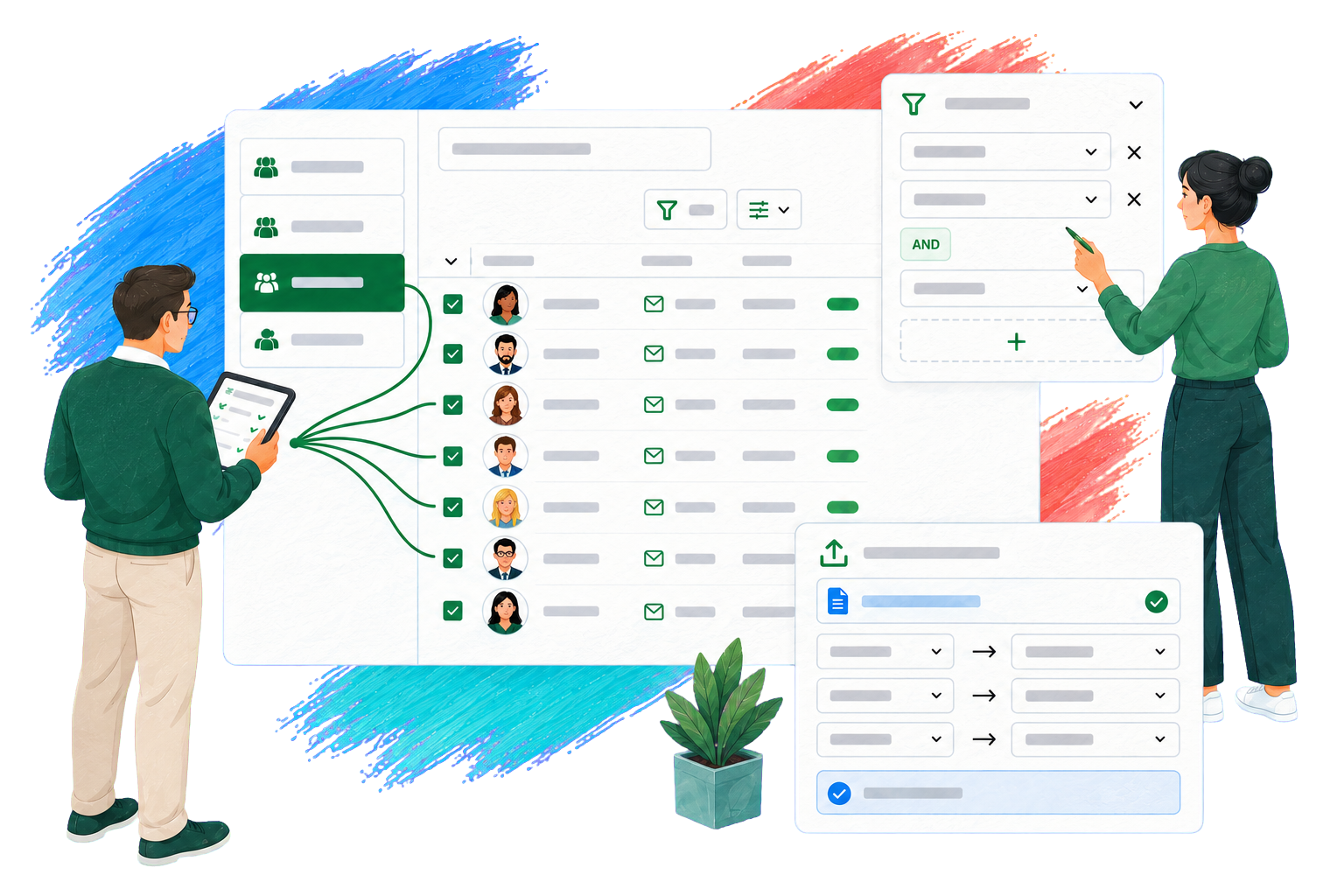
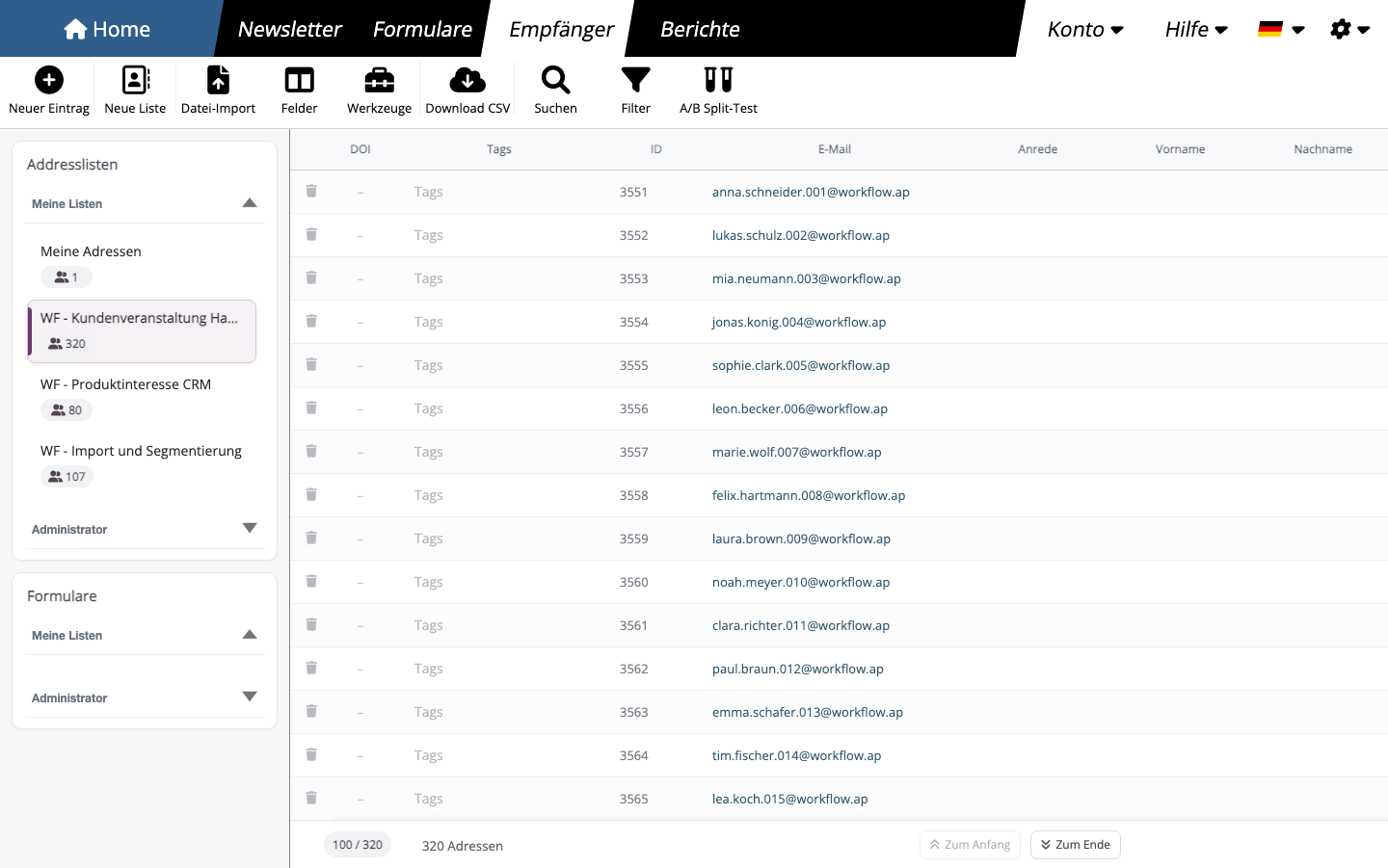
Manage newsletter subscribers in clear recipient lists. Find and edit individual contacts, maintain lists for different topics and keep your data up to date for the next mailing.
- Maintain lists for different topics or organizational units
- Search, view, edit and create recipients
- Export the selected view as CSV
A personal greeting
Personalize every greeting
mailfino generates personalized greetings from titles, first names and last names, and saves them in a dedicated contact field.
You can specify the language, formal or informal style and a default greeting. A preview shows the result before you save.
Greeting preview
Anna Schneider
Dear Ms. Schneider,
Martin Becker
Dear Mr. Becker,
Alex Morgan
Hello Alex Morgan,
CSV, Excel and clipboard
Import contacts with ease
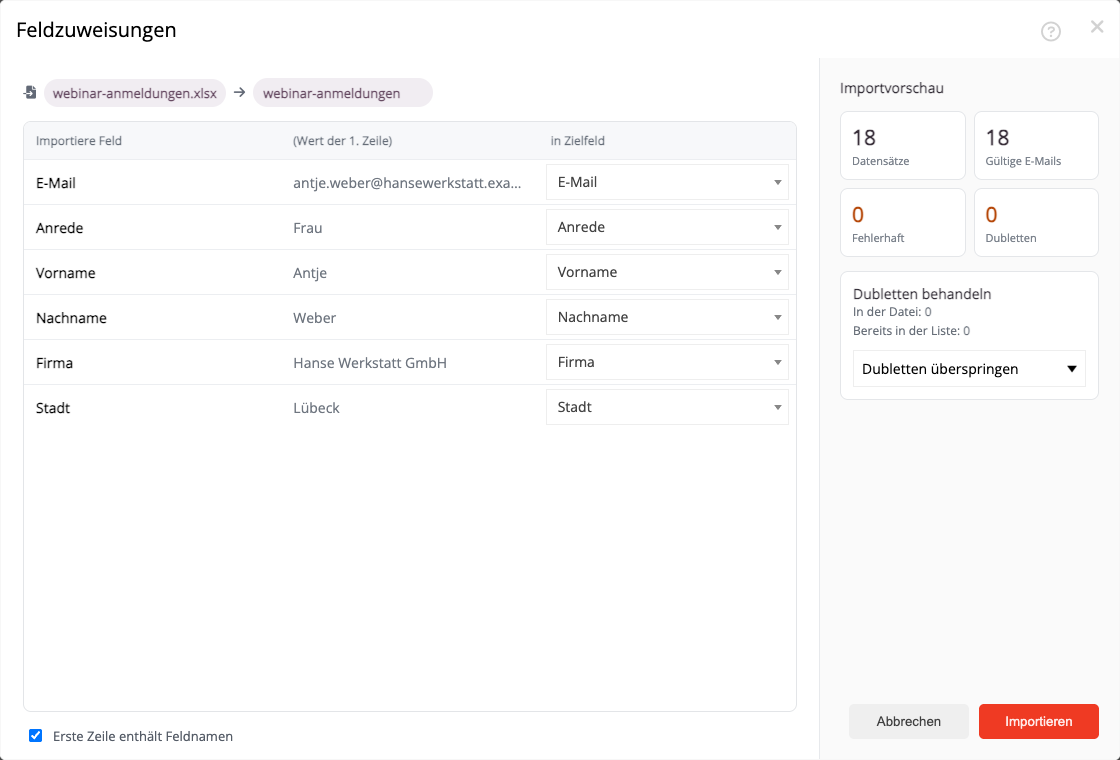
Map columns to the intended fields, create new fields if needed and review the source data before importing.
Lists containing only email addresses can also be pasted from the clipboard. This keeps it clear which data is being added to the list.
Build audiences
Reach the right contacts
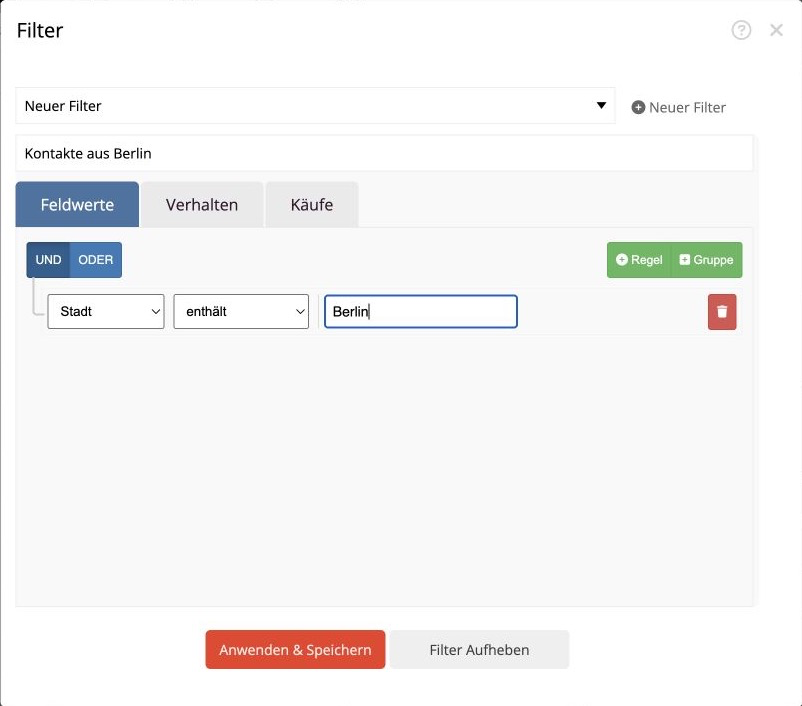
Combine location, country, interests and other contact fields to build precise audiences. Save frequently used filters for future mailings. When tracking and consent are configured accordingly, you can also take previous opens and clicks into account.
- Combine conditions with AND and OR
- Save and reuse filters
- Analyze contact data and responses together
Unsubscribes and data maintenance
Keep contact data reliable
Honor unsubscribes in your next send and selectively remove unsuitable entries from your lists.
Suppression list
Protected from future sends
Unsubscribed contacts
Excluded
Manually blocked addresses
Excluded
Imported blocked addresses
Excluded
Honor unsubscribes reliably
Unsubscribed contacts and manually blocked addresses are excluded from future mailings. You can add further blocked addresses individually or import them from a file.
List check
Review before making changes
Invalid addresses
Detected
Duplicates
Detected
Unsubscribes and suppression records
Retained
Clean up recipient lists selectively
Check a list for invalid addresses and duplicates. Before proceeding, you can see which records will be removed; unsubscribes and suppression records are retained.
Frequently asked questions
What to know before you start
How can I import existing newsletter subscribers?
Yes. mailfino supports importing CSV and text files. Lists containing only email addresses can also be pasted from the clipboard.
How can I segment a newsletter mailing list?
Filters help you select recipients based on contact fields. You can save recurring filters and apply them to a list.
Can mailfino generate personalized greetings?
Yes. mailfino can generate formal or informal greetings from titles, first names and last names. A preview shows the results before you save.
How do forms and recipient lists work together?
Forms can assign new sign-ups to the intended list. For newsletter sign-ups, the process can include double opt-in confirmation.
Does mailfino replace a CRM?
No. mailfino manages recipient lists and audiences for newsletter workflows. An existing CRM or specialist system remains the right place for sales processes.
Die richtigen Kontakte.
Für Ihren nächsten Newsletter.
Verwalten Sie Ihre Abonnenten in mailfino und bilden Sie passende Zielgruppen für Ihre Mailings.