Glossary Email authentication
DMARC for newsletters: Understand domain alignment and policy
DMARC (Domain-Based Message Authentication, Reporting, and Conformance) checks whether the visible From domain aligns with a domain authenticated successfully by SPF or DKIM.

On this page
On this page
The autumn newsletter shows [email protected] as its sender. SPF passes for provider.example.net, the provider’s domain. What matters now is whether a successful authentication path aligns with the visible domain example.org.
Which result aligns with the From domain
SPF checks the domain in the SMTP envelope. DKIM checks the signature for the domain in d=. A pass for provider.example.net authenticates that sending domain. A valid signature with d=example.org aligns with the visible sender and is sufficient for DMARC to pass in this example. If SPF and every valid DKIM signature authenticate only provider.example.net, there is no alignment.
The authenticated domains are what matter. A green icon in an email app or a pass result without a domain name tells you little for this diagnosis. Read From, smtp.mailfrom and the reported DKIM domain together in the received headers. If the message carries several DKIM signatures, one valid aligned signature suffices for the DKIM path.
Example From domain: example.org
- SPF passes for provider.example.netNo alignmentThe authenticated SPF domain does not align with example.org.
- DKIM passes for example.orgDMARC passesThe signing domain aligns with the visible sender.
- Only provider.example.net authenticatesDMARC failsNeither path supplies an aligned domain.
Strict alignment requires an exact domain match. In the default relaxed mode, different subdomains of the same organisational domain can align. When testing, read the receiver’s authentication results. Forwarding can change the SPF route while leaving an unchanged DKIM signature valid. A mailing list that modifies the message can also affect that signature.
Read the message headers at the recipient
Check DKIM and the signing domain
Choose a policy and monitor its effects
The domain owner publishes the policy as a TXT record, for example at _dmarc.example.org. v=DMARC1 identifies the version. p=none is for monitoring. With p=quarantine, the owner asks receivers to treat failing messages as suspicious. p=reject expresses a rejection preference. Receivers also use their own evidence and rules to make the delivery decision. A DMARC result alone does not guarantee inbox placement.
Review reports over a period that includes infrequent sending sources. The club may send a monthly newsletter while its booking system sends confirmations daily. Check any unexpected source with the people responsible for it. After a change, compare results for known sending routes and the handling observed at the receivers.
Policy for failed validation
- Monitorp=noneNo change in handling based on the policy alone.
- Treat as suspiciousp=quarantineThe receiver might place the message in spam.
- Prefer rejectionp=rejectReceivers consider additional evidence in their decision.
Start by identifying every legitimate source, such as your newsletter, shop and company mailboxes. Use aggregate reports to see which sources use the domain and how many messages pass aligned authentication. Some receivers may not send reports. The reports do not show opens or campaign performance. RFC 9989 requires domains publishing p=reject to apply valid DKIM signatures. Before tightening policy, also check the effect on forwarding and mailing lists.
DMARC and policy handling in RFC 9989
DMARC aggregate reports in RFC 9990
Check DNS status and a mailfino test message
Under Sending, select the intended sender and open the DNS view in mailfino Cloud. Compare the records shown there with those actually published in DNS. If the domain already has a policy, agree any changes with the domain administrator. Send the autumn newsletter to a test mailbox you control and compare the SPF, DKIM and DMARC results and the reported domains.
Record the domain in the newsletter’s From field and the service that sends it. Repeat the test if you change the domain, a sending service or the DNS policy. A clean newsletter test covers the invoicing system or company mailboxes only once you have tested those routes separately as well.
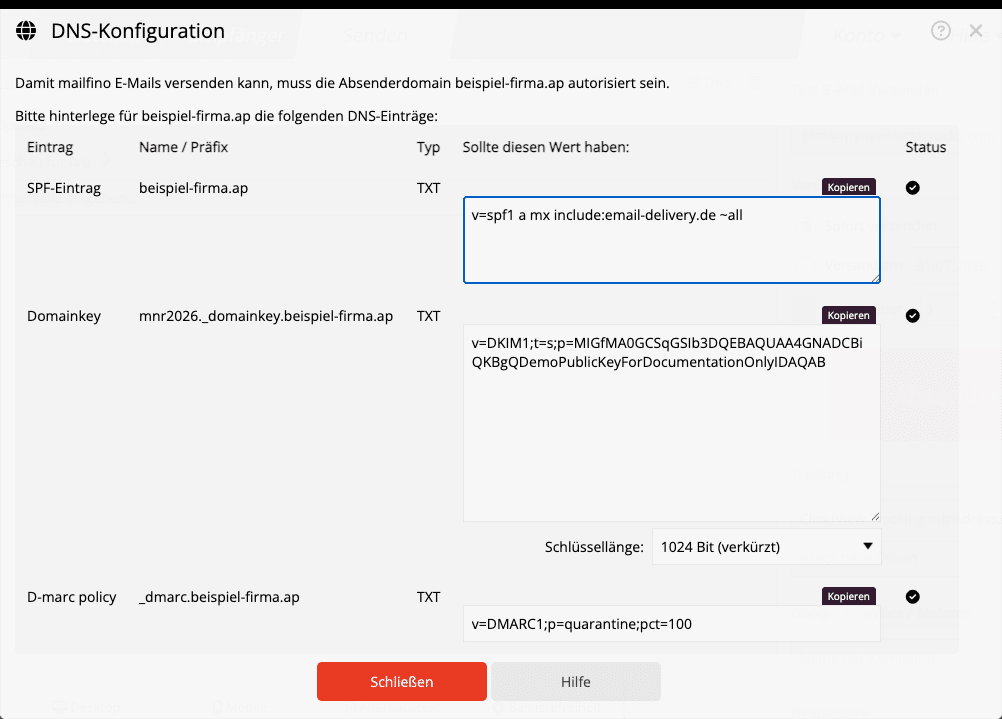
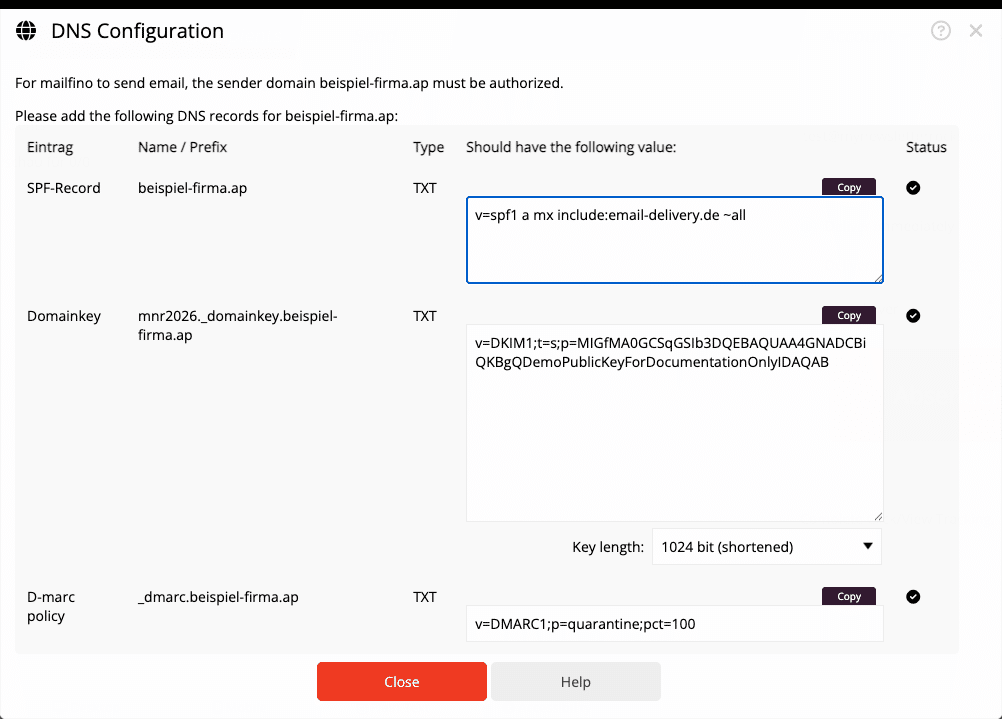
A DNS status in the sender view concerns the published records. A test header shows how a specific receiver handled that send. For a view of other sending routes, use the aggregate reports sent to the address configured in your policy.
