Glossary Newsletter design
Newsletter preheader: How it complements the subject line
A preheader is a short text intended for the preview next to or below the subject line. The email app determines what actually appears in the inbox.
On this page
On this page
An organiser sends out an autumn programme. The subject line names the topic. The preheader “Sign up by Friday” gives readers a reason to open the email.
How the subject and preheader work together
Read the sender, subject line and preview text together. In the autumn programme example, the sender identifies the organiser and the subject names the topic. “Sign up by Friday” adds the deadline. If the preview simply repeated “Autumn programme”, readers would get the same information twice.
Choose the detail that helps most readers. People already interested may want the deadline. Someone unfamiliar with the programme may benefit more from “Three evening courses for beginners”. Include either detail only if readers can find it quickly once they open the email.
Example inbox views
- With a preheaderAutumn programmeSign up by Friday
- Without a dedicated preheaderAutumn programmeView in your browser …
Write a subject line that fits
Length and display in the inbox
The visible length varies with the app, screen and settings. If the subject and preview share one line, a long subject may leave less room for the preview. On a phone, the preview can also appear on a line of its own. Some apps shorten or replace the original snippet.
Start with a short statement that makes sense on its own. “Sign up by Friday. Choose from three courses” works even if only the first sentence is visible. “For anyone who hasn’t yet decided: registration closes on Friday” risks losing the deadline to truncation. A preview on a test device is more useful than a universal character target.
Which words survive truncation?
- Deadline firstSign up by Friday. …The deadline appears in the short snippet.
- Deadline at the endFor anyone who hasn’t yet …The deadline is missing from the shortened snippet.
The preheader is the text the sender intends to show. The email app decides what actually appears. Without dedicated text, the app may show the beginning of the message, such as “View in your browser”. Some apps can also append body copy to a short preheader. Make sure the first substantive line in the newsletter itself makes sense as well.
Test especially short preview text alongside the line that follows it in the newsletter. An app might append “View in your browser” to “Sign up by Friday”. If the next line is “Evening courses start in September”, the combined snippet still gives readers useful information.
Apple Mail: change the length of previews in the message listApple Mail: change the length of previews in the message list
Check the inbox and test variants
Send the same test email to addresses you control in two different email apps. Look at the message list first. Note how much of “Sign up by Friday” remains on the phone and whether extra body text appears on desktop. Then open the email and check that the deadline and signup link are easy to find.
One test, two views
- PhoneDeadline in the first sentenceCheck whether the text is cut off before the deadline.
- DesktopSubject and previewCheck that the two lines work together.
If you see only “View in your browser”, check the plain text version and the start of the message. If just the deadline disappears, move it forward and test again. If the preview includes a name, test with a contact that has no first name as well. This catches blank placeholders or an awkward opening.
For an A/B test, keep the subject fixed and compare a deadline with a benefit. Randomly split comparable recipients and keep the send time and message body the same. For an event newsletter, clicks on the signup link and completed registrations are closer to the goal than opens. Automatic image downloads can also register as opens.
Note the app and view you checked. Text that is too long calls for an edit. A preview disabled in the app cannot be restored by rewriting it. If an inbox shows its own summary, check the same message in another email app as well.
Check the opening text in mailfino
In mailfino, the beginning of the plain text version can be used as preview text beside the subject line. Open the “Plain Text” dialog in the newsletter editor. There you can check the automatically generated text version or edit it when automatic generation is turned off.
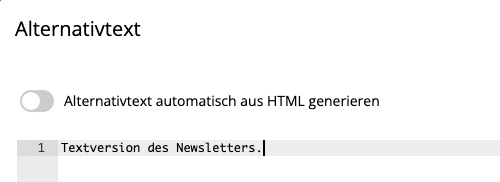
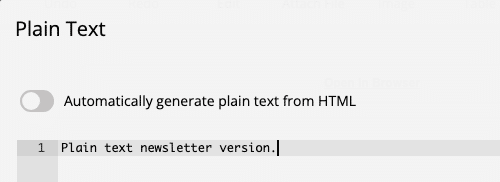
The dialog edits the readable plain text version of the email. Start with a clear sentence that works both inside the message and in the preview. For the autumn programme, that might be “Sign up by Friday”. Keep the remaining information and the signup link in the plain text version as well.
Send a test email from the mailfino preview. Check the visible snippet in a real inbox and then open the plain text version. Repeat after changing the subject or opening. The inbox preview shows exactly which words readers can see on the device you tested.
Check the plain text version again after copying a template. A paragraph from the previous mailing may carry the wrong deadline for the new autumn programme even if the HTML version is up to date. Compare the opening sentence, the date and the signup destination in both versions.
