Glossary Signup and list hygiene
Double opt-in: How newsletter signups are confirmed
Double opt-in (DOI) is a two-step signup process. After submitting a form, the person confirms their newsletter subscription using a link in an email. The address becomes active for the newsletter after confirmation.
On this page
On this page
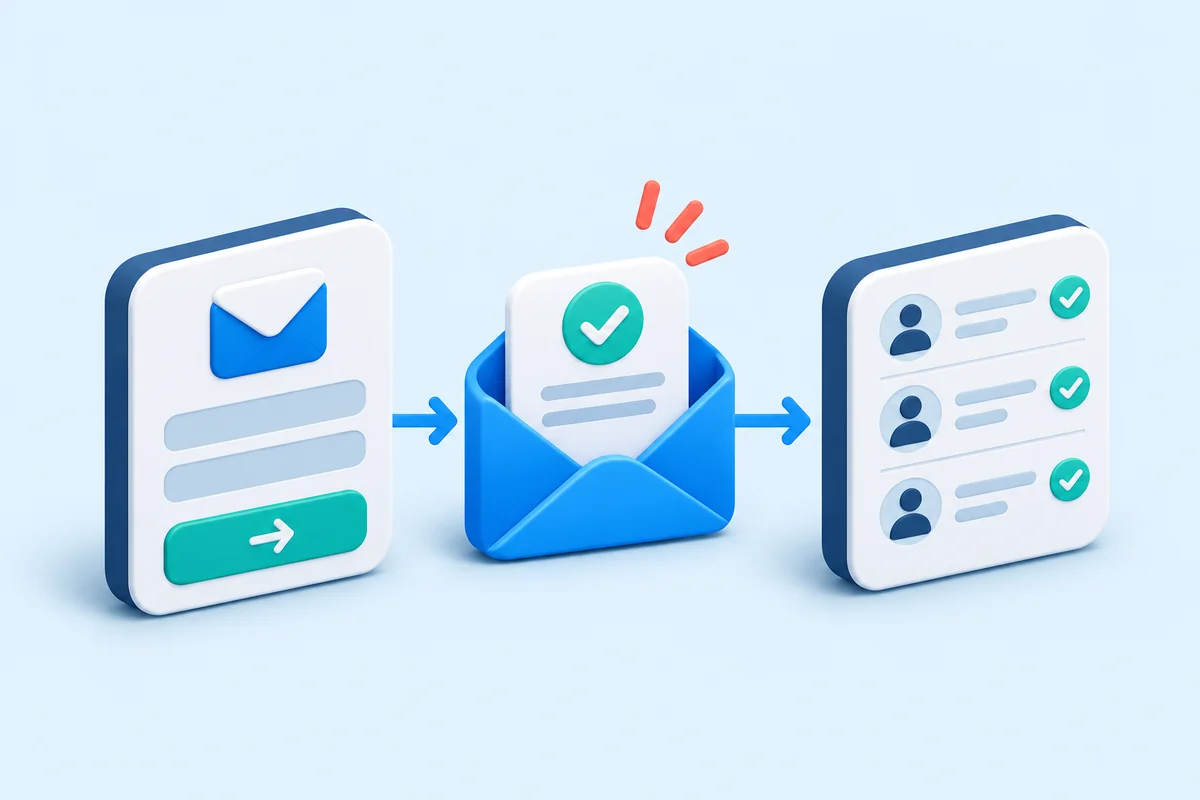
An event organiser sets up a monthly newsletter featuring upcoming events and signup deadlines. In the first month, 200 valid signups are submitted. Within the chosen window, 150 are confirmed. This example shows what happens between form submission and joining the list, and where the remaining signups might have stopped.
From signup form to active subscription
The form identifies the sender and explains what the event newsletter covers and how often it arrives. After submission, a page explains the next step: open the inbox and confirm the signup. Until then, the address remains unconfirmed for this newsletter.
The route onto the mailing list
- Form200 signupsThe person submits the form.
- Confirmation emailClick the linkThis confirms the signup.
- Mailing list150 confirmed50 remain unconfirmed at the cutoff.
The confirmation email goes to the address entered on the form. Once the signup is confirmed through the link, the address can join the intended list. A final page tells the person which newsletter they have subscribed to. If there is a welcome email, it follows after confirmation.
Single opt-in and double opt-in compared
With single opt-in, submitting the form activates the subscription. This is a shorter process, but the form submission alone does not show whether anyone can access the address entered. Double opt-in requires confirmation through the inbox. That stops a mistyped address or someone else’s address from becoming an active subscriber based on form submission alone.
When does the address become active?
- Single opt-inAfter submitting the formSubmitting the form completes signup.
- double opt-inAfter confirmationThe signup stays pending until the second step.
The extra step asks for more attention. Even interested people may miss the message or find it in their spam folder. This is why it helps to review the confirmation email and the page shown after submission together. Both should make clear what happens next.
Write a clear confirmation email
State the purpose in the subject line, for example “Please confirm: Events newsletter”. Briefly explain why the email has arrived and show a clear action such as “Confirm subscription”. Use a recognisable sender. In a test email, check that the link is easy to find on a phone.
Align the messages shown before and after confirmation. In this example, the form shows “Please check your inbox”. After the link is clicked, the confirmation page says “You are now subscribed to our monthly events newsletter”. Someone who did not sign up should be able to tell that they do not need to click.
Three messages guide the signup
- After submitting the formPlease check your inboxConfirmation is still pending.
- In the confirmation emailConfirm subscriptionThe link completes the signup.
- After clicking the linkYou are subscribedThe page names the newsletter the person has subscribed to.
Understand confirmation and evidence
The click records an additional step: someone used the link sent to the address provided. To understand the record later, it helps to know which newsletter the person signed up for and what the form said at the time. One practical check is to make sure the version of the signup text can be matched to the relevant timestamps.
Requirements for marketing email depend on the market and the specific circumstances. In Germany, the data protection authorities’ direct marketing guidance explains how evidence of consent fits into the process.
German data protection authorities’ guidance on direct marketing
Calculate the confirmation rate and investigate drop-off
To calculate the confirmation rate, compare confirmed and submitted signups from the same group. Decide how to count repeated submissions and how long each signup has to be confirmed. One option is to compare the signups for each campaign that were confirmed within seven days of submission.
Confirmation rate in the example
- Confirmed150 ÷ 200Confirmed signups divided by submitted signups.
- Result75%Multiply by 100 to get the confirmation rate.
In the example, 50 signups are still unconfirmed at the cutoff. The rate alone does not explain why. Check three things separately: whether the form was processed, whether the confirmation email arrived, and whether the link led to the final page. If a test fails at one step, correct that issue first and repeat the whole process.
Interpret confirmation email delivery failures
Confirmed contacts and list hygiene
Set up and test the confirmation link in mailfino
Enable double opt-in for the newsletter form and select the intended list. Open the confirmation email in the editor and link the “Confirm subscription” button to the double opt-in activation system link. This connects the confirmation action to the form workflow.
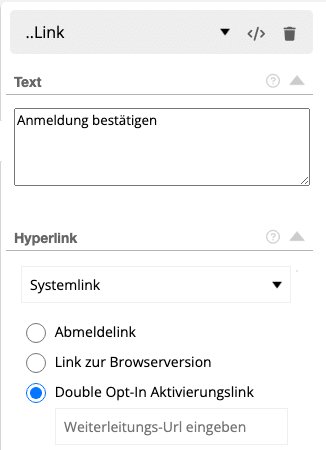
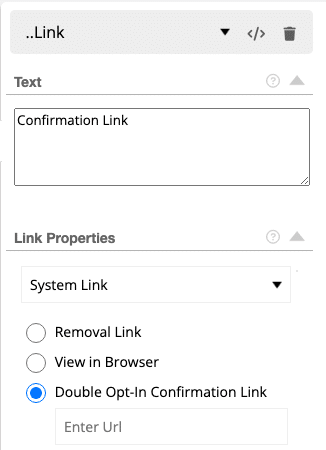
Sign up through the published form with a test address you control. Check that the address is not listed as a confirmed subscription before you click. Open the link from the email you receive, then check the confirmation page and the entry on the intended list. This tests the flow beyond the editor preview.
