Forms with mailfino
Grow your contact list with forms
Design and publish newsletter forms, guide sign-ups through the double opt-in process and add new subscribers directly to your email marketing.

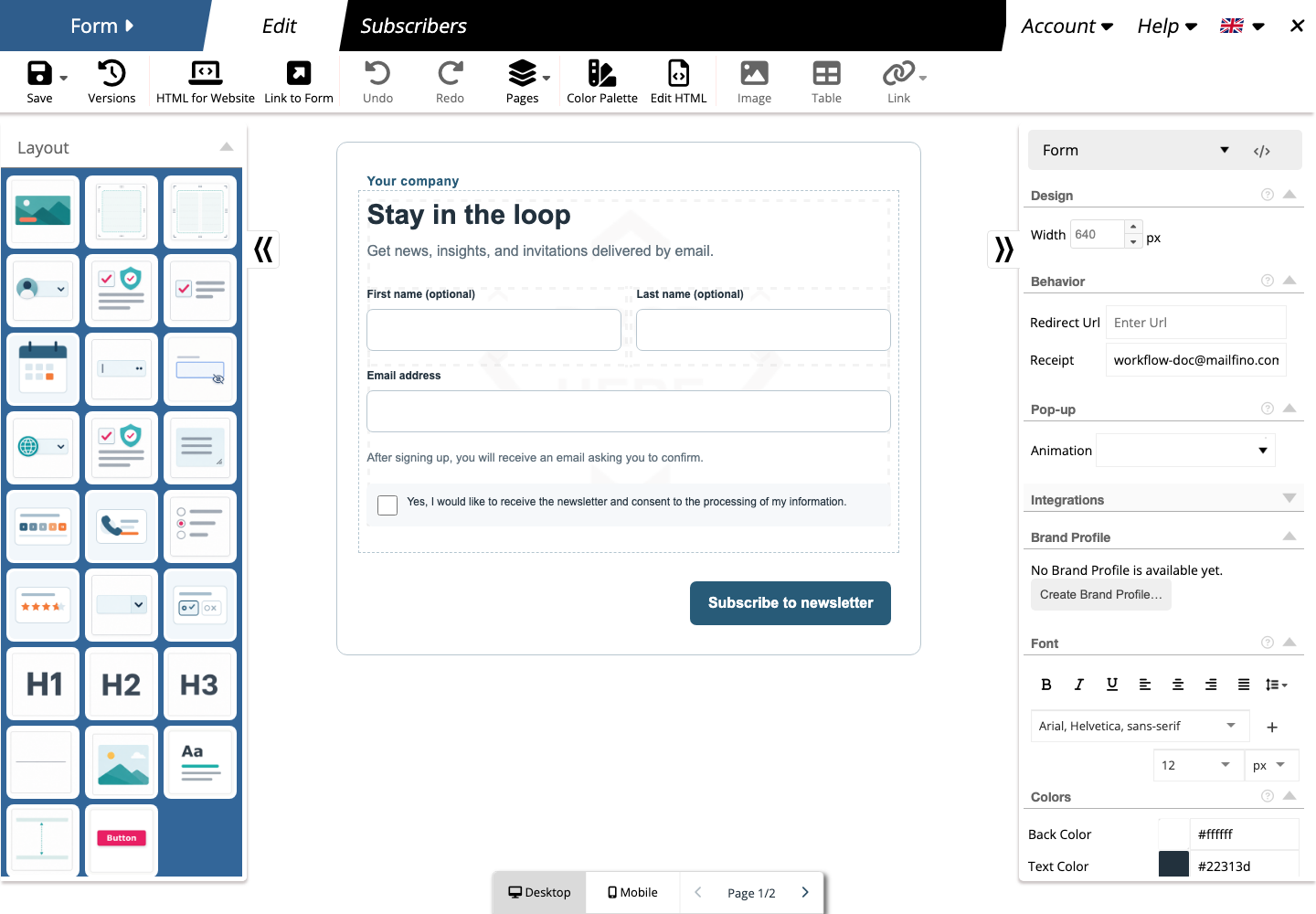
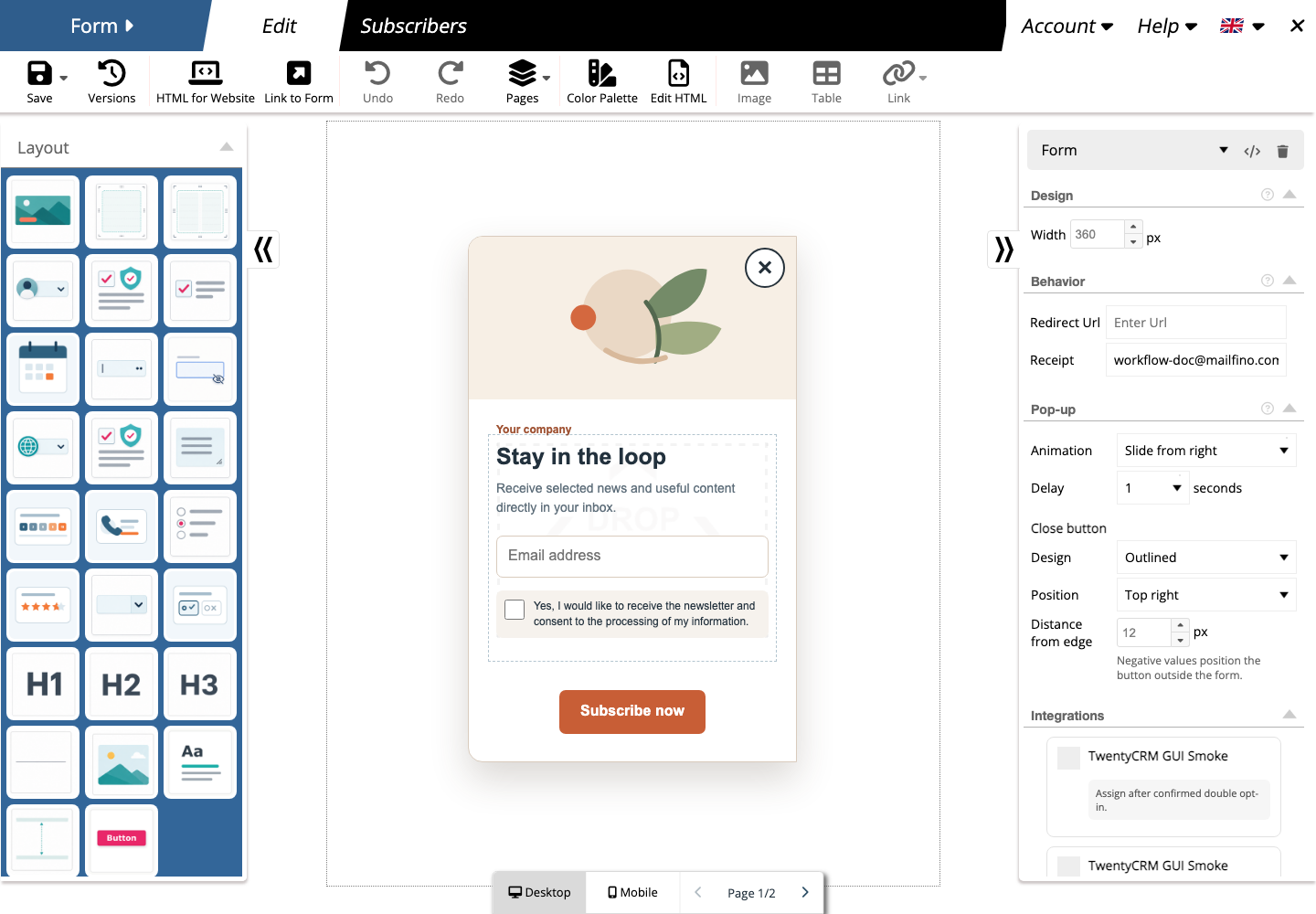
Visual form editor
Design forms to match your brand
Arrange fields, text, images and actions with drag and drop, and edit the result directly in the form view.
- Build single- and multi-column layouts
- Customize colors, fonts, spacing and rounded corners
- Optimize desktop and mobile views separately
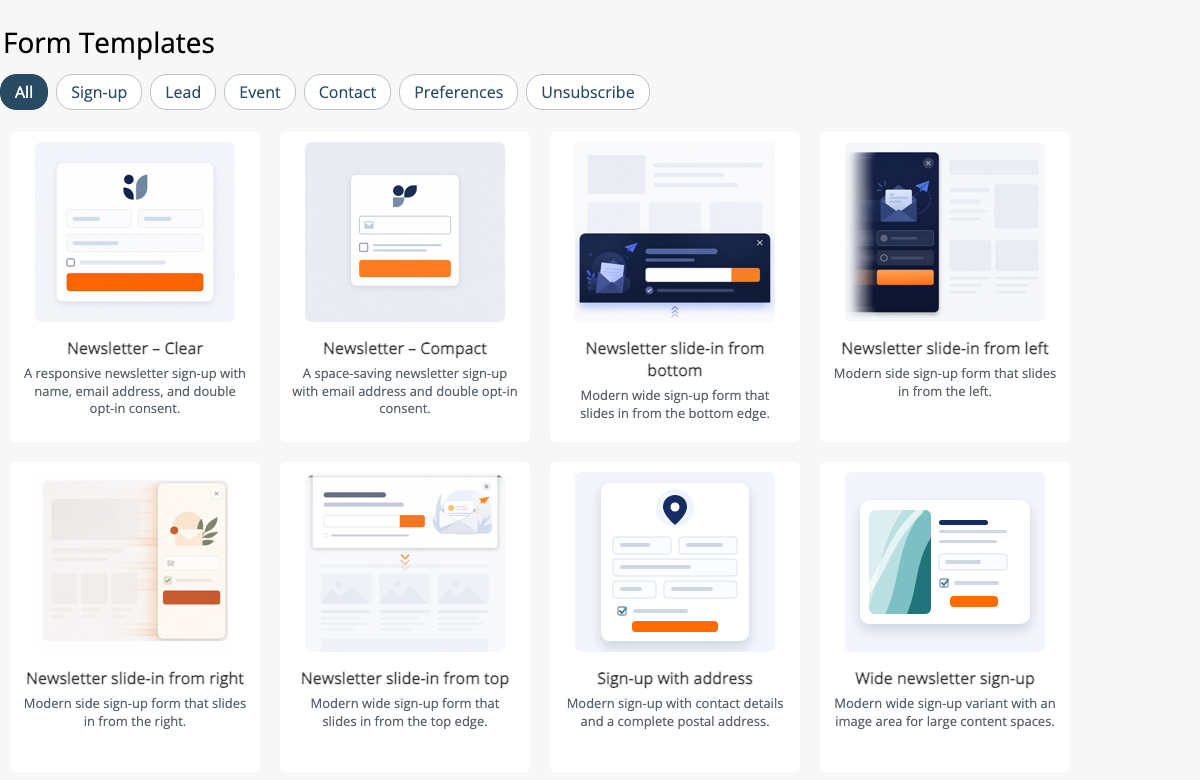
- Use templates, brand profiles and earlier versions
Multi-page forms
Break longer forms into simple steps
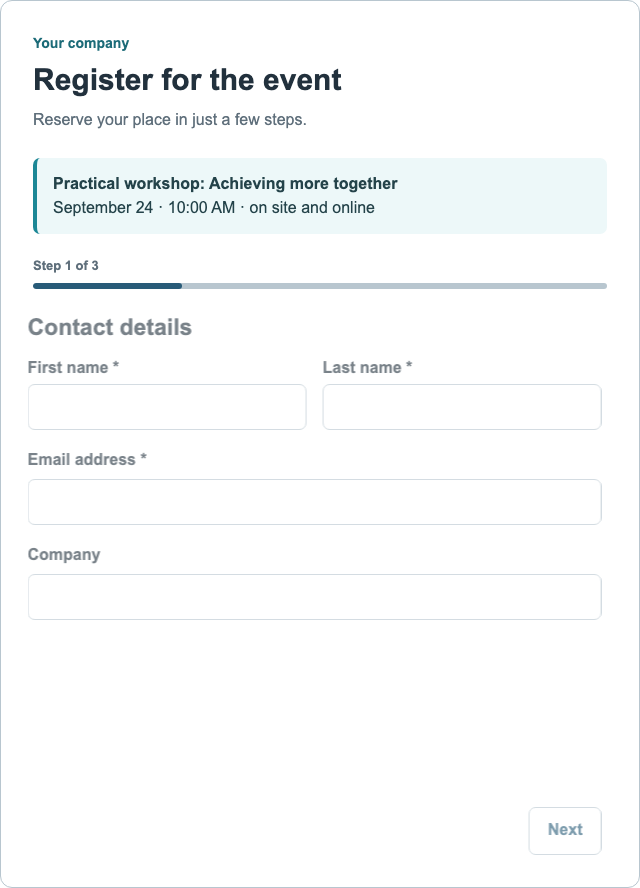
Spread longer questionnaires across several clear pages. mailfino adds navigation and checks the information before visitors continue.
- Create and arrange as many form pages as you need
- Show progress
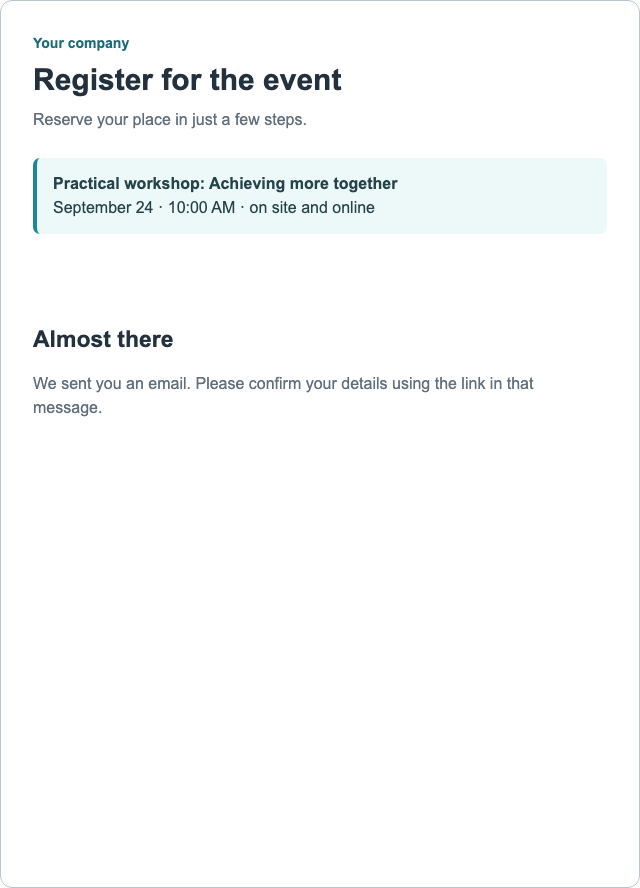
- Show your own success page or redirect to an HTTPS address
Forms for different tasks
Collect only what you need
From newsletter sign-ups to events: combine fields and actions to suit each purpose.
Newsletter sign-ups
Gain new subscribers and combine sign-up with double opt-in and a welcome email.
Events and inquiries
Collect event registrations, contact requests, callback requests or information inquiries in a structured way.
Preferences and feedback
Let contacts update their interests, lists and details, or collect feedback with NPS and star ratings.
Pop-ups and spam protection
Add pop-ups and slide-in forms
Use a regular form as a pop-up or slide-in and choose which side it appears from.
Built-in, invisible spam protection filters suspicious submissions without requiring an external account. Protection can be strengthened further for more demanding requirements.
Double opt-in and follow-up communication
Turn interested visitors into subscribers
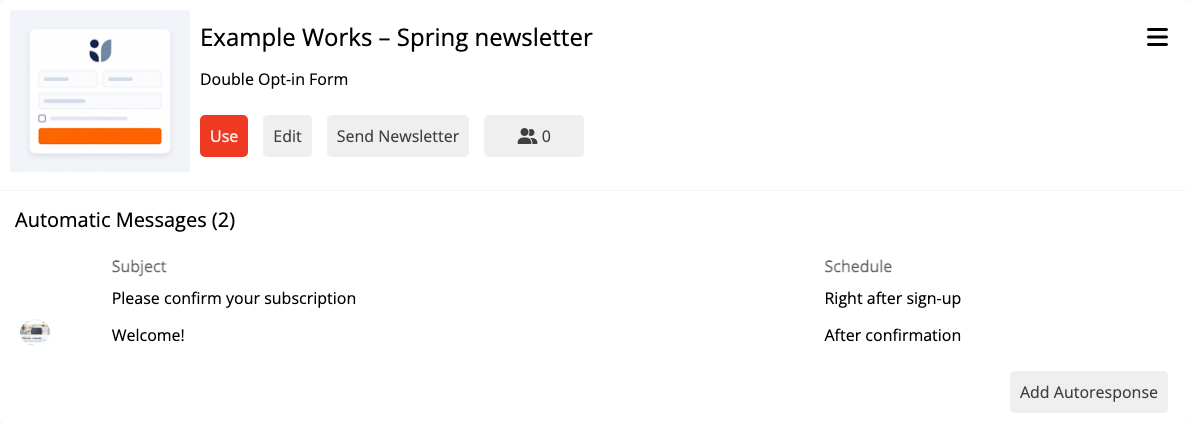
Ask new subscribers to confirm their email address before follow-up emails begin. After confirmation, you can send a welcome email and further messages at intervals.
01
Sign-up
The visitor selects the newsletters they want and submits the form.
02
Confirmation
mailfino sends the prepared email with the confirmation link.
03
Welcome
After the click, a suitable welcome email can follow automatically.
04
Follow-up emails
You can prepare additional messages to be sent at intervals.
Your newsletters
What would you like to receive?
Choose the topics you would like us to keep you informed about.
☑ Product updates
New features and practical tips
☑ Events
Webinars, dates and invitations
☐ Industry insights
Trends and selected expert articles
Preferences and unsubscribes
Recipients manage their own preferences
Personalized preference forms let recipients subscribe to or opt out of individual newsletters and update their saved details.
Dedicated unsubscribe forms are available: either for a single list or to block the address entirely. An optional question about the reason can follow after completion.
Publish
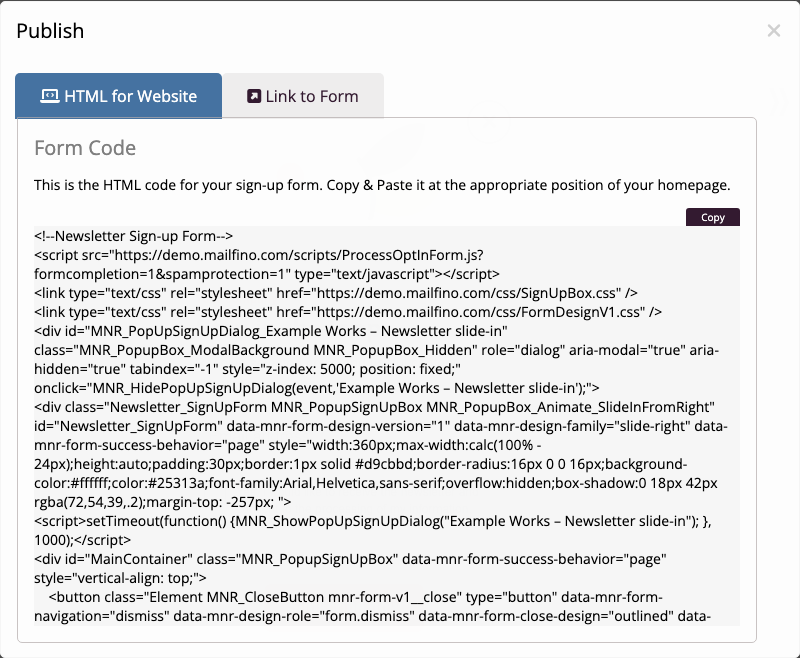
Publish forms flexibly
Publish forms on your website, as a pop-up or via a direct link.
- Embed in existing web pages
- Link from newsletters and social networks
- Make forms directly available for sign-ups and campaigns
Form statistics
See where interested visitors drop off
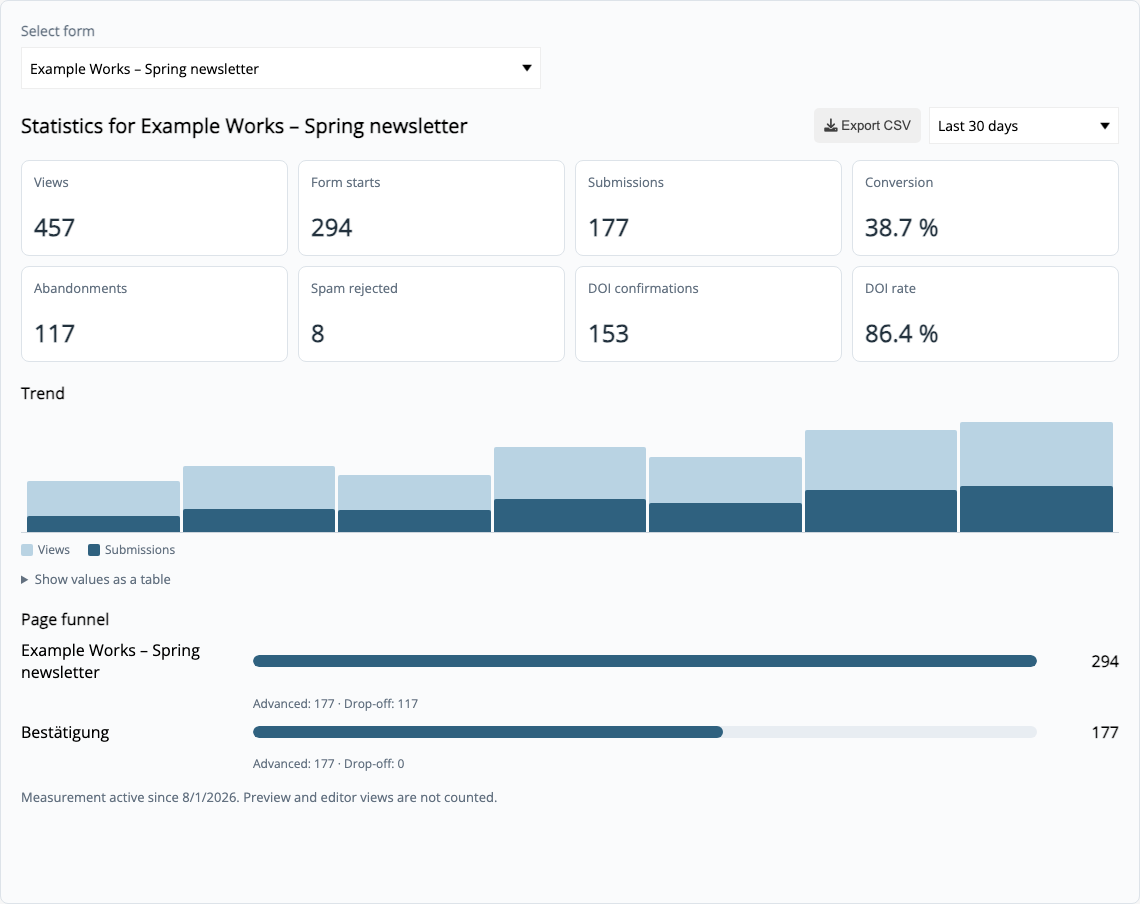
Compare views, starts and successful submissions and, for multi-page forms, see which page visitors leave the process on.
Conversions and drop-offs
Drop-offs by form page
Spam rejections
Double opt-in rate
Time period and trends
CSV export
The statistics show process events. Field values, email addresses and IP addresses are not displayed there.
Ready for your first form?
Frequently asked questions
What to know before you start
Do I need coding skills?
No. You build and design forms in the visual editor. To embed a form in an existing website, insert the provided HTML code where you want it to appear.
Can a form have multiple pages?
Yes. You can create and arrange multiple pages and add a progress indicator. mailfino checks the current page before the visitor continues.
Are pop-ups and slide-ins supported too?
Yes. Regular forms can appear as pop-ups or slide in from the left, right, top or bottom.
How does double opt-in work?
After a newsletter sign-up, mailfino sends the prepared confirmation email. The intended follow-up process can continue only after the confirmation link has been clicked.
What analytics are available?
The statistics include views, starts, completions, conversions, drop-offs, spam rejections and double opt-in confirmations. For multi-page forms, drop-offs are also shown for each form page.
